
Google Truncating Your Title? Why SEO Needs Pixel Width, Not Character Count
· ToolGee
Introduction: Character count “passes,” but SERP still truncates
Many people first hit this problem in an SEO plugin.
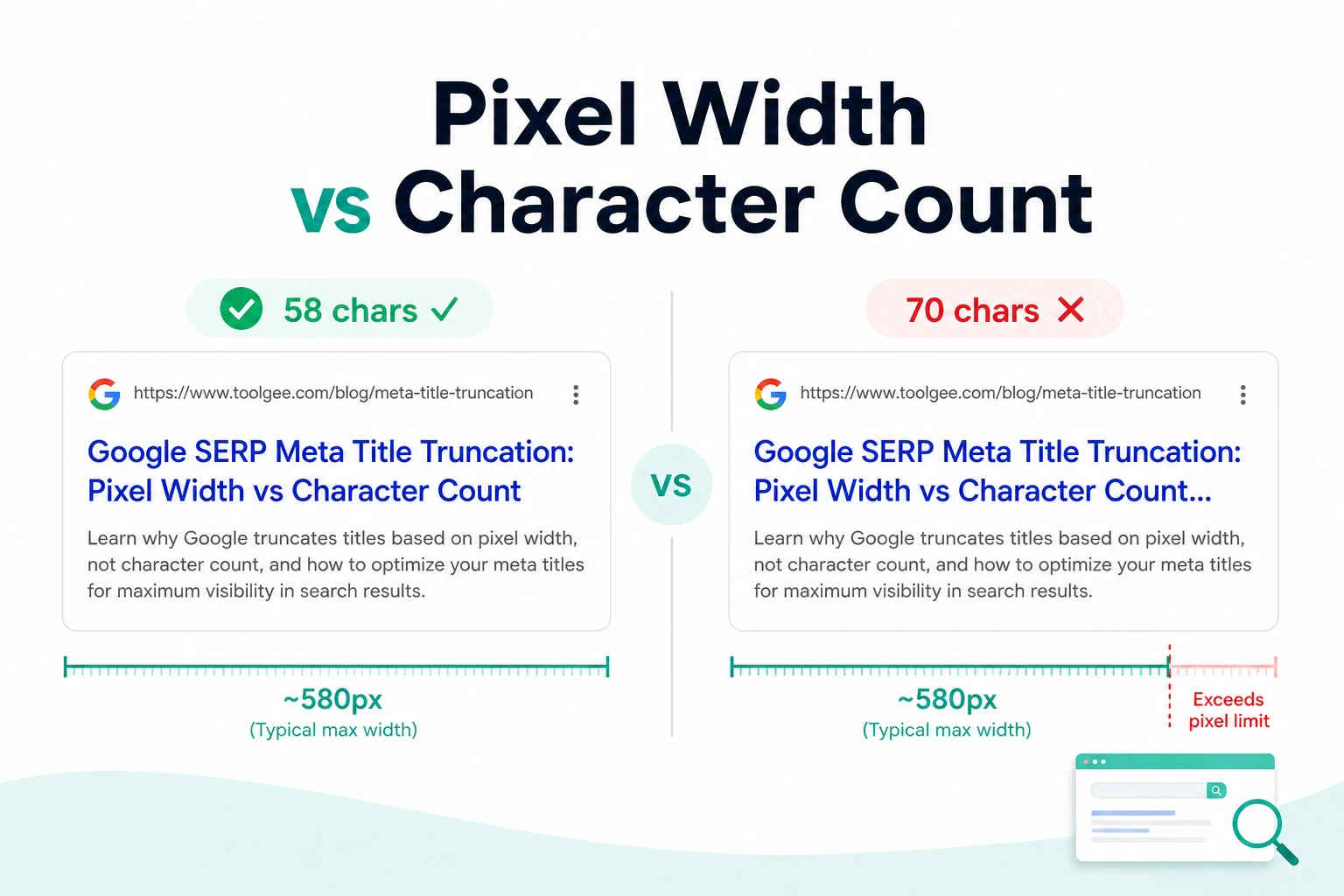
The plugin shows Meta Title 58/60 ✓ — character count looks fine, so you publish. A few weeks later you search for your page and see … at the end of the title in Google results. Your brand name or core keyword got cut off.
The opposite happens too: a 62-character title triggers a plugin warning, but the SERP preview shows it in full with no truncation.
This usually isn’t a broken plugin or Google “randomly” cutting text. The real reason: Google truncates rendered visual width, not raw character count in HTML.
Two examples (both 58 characters):
2026 SEO Guide | WWW Metrics & MMM Analysis— wide letters W and M, more likely to truncate2026 seo guide | tips for better clicks— narrow letters i and l, same length may display fully
So the question isn’t “how many characters?” but “how wide does this text look in search results?” This article covers the logic, thresholds, a practical workflow, and common mistakes.
Why Google truncates by pixels, not characters
SERP is a layout problem, not a word-count problem
Search results are UI layout: titles and descriptions render inside a fixed-width container. When text exceeds the visible area, the browser truncates and shows ….
Truncation happens after rendering — Google has already drawn your Meta Title and Meta Description on the page, then decides how much to show based on actual width. It doesn’t simply cut at “character 60”; it asks “how wide does this text draw?”
Same character count, very different pixel width
| Factor | Effect on pixel width | Example |
|---|---|---|
| Letter shape | W, M can be 2–3× wider than i, l | WWW vs iii |
| Case | Uppercase usually wider | SEO vs seo |
| Numbers & symbols | Pipes, dashes, emoji vary in width | | - — |
| Mixed scripts | CJK full-width vs Latin | Mixed-language titles |
| Query-match bold | Google may bold matches; bold is wider | Search term in title |
The last point is easy to overlook: when a user’s query appears in your Title or Description, Google sometimes bolds the match. Bold text can change effective width — so the same copy may “fit” differently for different queries. That’s why staying in the safe zone beats hugging the limit: bolding and other factors can push borderline copy over the edge in live SERPs.
Where does “50–60 characters” come from? Is it still useful?
“50–60 chars for titles, 120–160 for descriptions” is an industry average from specific fonts and languages — not a Google-published hard limit.
It still helps — quick filtering when writing at scale, team style guides, CMS maxlength fields. But it’s an empirical reference, not an official rule: useful, not a substitute for measurement.
Bottom line: character count is a fast heuristic; pixel preview is closer to what users actually see.
Pixel width vs character count: how to use both
Recommended priority
Pixel preview (primary) > Safe-zone threshold (primary) > Character count (secondary) > Plugin green light (secondary)
A reusable workflow:
- Draft Meta Title and Meta Description
- Open a SERP preview tool; check desktop and mobile
- Confirm key info (brand, core keyword, differentiator) is fully visible in the safe zone
- If near the limit, use character count to trim — remove filler, front-load keywords
- After launch, review actual display and CTR in Google Search Console in 2–4 weeks
When character count still helps
- Bulk title drafting: e.g. CMS caps title at 70 chars — filter obvious overflows first
- Team conventions: “Site-wide titles stay under 60 characters”
- Multilingual rough estimates: CJK + Latin mixes make char-to-pixel mapping trickier; chars are only a floor estimate
When you must check pixels
- Titles with lots of caps, numbers, symbols (common on SaaS and docs pages)
- Long brand or product names
- High mobile traffic — descriptions truncate much earlier on mobile
- Before shipping homepage, core landing pages, or high-traffic category pages
Desktop vs mobile: different cut-off thresholds
The thresholds below are default values in ToolGee’s SERP tool (Canvas measurement with Arial; may vary by language and rendering):
Title
| Device | Safe zone (recommended) | Limit (approx.) | Writing tip |
|---|---|---|---|
| Desktop | ≤520px | ≈580px | Put brand + core keyword early |
| Mobile | ≤560px | ≈650px | Mobile title area can be slightly wider, but stay in the safe zone |
Note: on current Google result layouts, mobile titles often have a bit more room (exact behavior can change with UI updates). That doesn’t mean you can write freely — descriptions truncate earlier on mobile (see below).
Google may rewrite titles using H1 or other signals, but Meta Title remains the strongest signal. Getting meta title right is step one for controlling SERP display.
Description
| Device | Safe zone (recommended) | Limit (approx.) | Writing tip |
|---|---|---|---|
| Desktop | ≤830px | ≈920px | Put value prop + CTA in first 1–2 sentences |
| Mobile | ≤600px | ≈680px | Front-load key info |
Mobile description safe zone (600px) is only ~72% of desktop (830px). If mobile traffic is over half your visits, treat mobile preview as primary, not desktop “still has room.”
Safe zone vs limit — what’s the difference?
- Safe zone: buffer for font tweaks, query bolding, A/B tests
- Limit: empirical cut-off; beyond it,
…is likely
Aim for the safe zone, not the edge — text past the safe zone may never be seen.
5 common Meta length mistakes
Mistake 1: SEO plugin green = done
Most plugins use character count or fixed thresholds. They don’t simulate SERP fonts, bolding, or device differences. Plugin check + SERP preview is the safer combo.
Mistake 2: Desktop only, ignore mobile
Google uses mobile-first indexing. Mobile descriptions truncate earlier; desktop-only checks overestimate visible space.
Mistake 3: Treating character max as a writing target
“Fill 160 characters” ≠ “users see 160 characters.” The tail may always sit behind …. Say enough; don’t pad for length.
Mistake 4: Keywords piled at the end of the title
After truncation, users often only see the start. Put core terms and differentiators first; brand at the end only if truncation risk is low.
Mistake 5: Treating thresholds as official Google numbers
Google adjusts UI, fonts, and truncation. Thresholds in this article and tool are best-effort approximations — stable and useful, not exact official specs. Iterate using Search Console after launch.
Pre-publish workflow: 5 steps with a SERP preview tool
Using the Meta Title & Description Length Checker as an example. The tool runs locally in your browser; your copy is not uploaded.
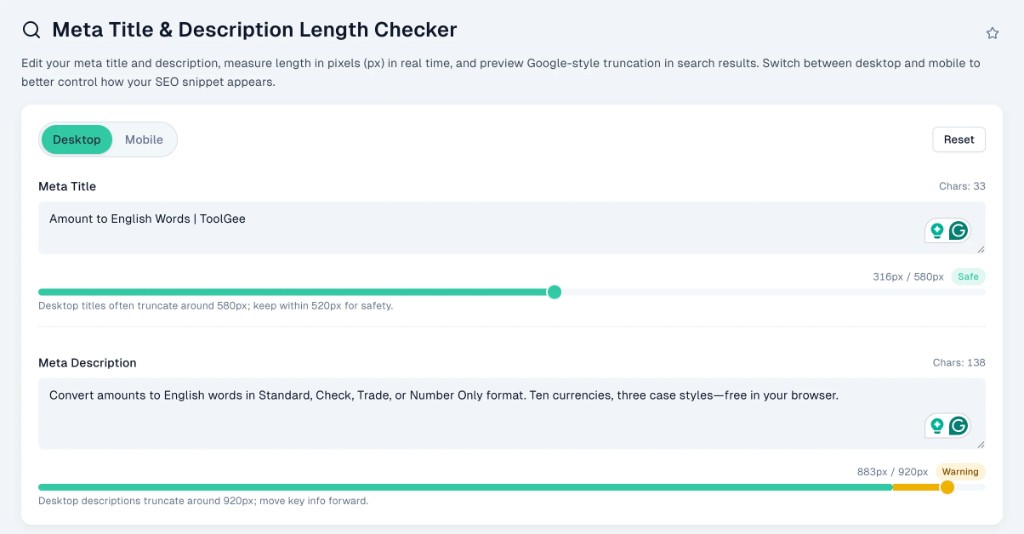
Step 1: Enter Meta Title and Meta Description
Paste from your CMS or SEO plugin. Measure the current state first, then decide whether to edit.
Step 2: Switch desktop / mobile
Check px usage (used px / limit px) and status: safe, warning, over limit. Run both — not just one.
Step 3: Review truncation in the SERP preview
Look for … and whether brand, core keyword, numbers, and CTA stay fully visible. Visual cut-off is often clearer than numbers alone.
Step 4: Fine-tune using character count
The tool also shows character count for quick trims:
- Drop filler (“complete,” “best,” “comprehensive”)
- Abbreviate non-core words
- Use
|or-instead of long connectors (symbols cost pixels too) - Move differentiators forward
Step 5: Confirm key info on both devices
Check desktop and mobile previews. If either shows …, shorten or restructure so brand, keywords, and CTA stay in the safe zone. Google may bold query matches (wider weight) — margin beats gambling on the limit.
6 principles for Meta Title and Description
- One intent per title — avoid one homepage template for every URL
- Most important info in the first ~40% of pixels — assume the tail may disappear
- Description = value + difference + action — not a keyword list
- Title and H1 similar but not identical — title for clicks, H1 for on-page topic
- Avoid ALL CAPS titles — wider pixels and spammy tone (see English capitalization mistakes for title case)
- Review periodically — Google may rewrite snippets; use Search Console → Results → Pages
Length strategy by page type
| Page type | Title strategy | Description strategy |
|---|---|---|
| Homepage | Brand + core offer + geo/differentiator | Scope + trust signals + CTA |
| Blog post | Topic + year/context + brand | Problem solved + reader benefit |
| Product page | Product + key spec + brand | Benefits + shipping/warranty + nudge |
| Tool / SaaS | Feature + audience + brand | Use case + differentiator + Free/trial |
| Multilingual | Write each locale natively; don’t machine-fill length | CJK pixels differ from Latin — measure |
After the tool — what else?
What this tool helps with
- Local browser measurement; no server upload
- Canvas-based text width, close to rendering
- Desktop/mobile preview +
…simulation - Both px and character metrics
What it can’t replace
- Official Google SERP rendering (fonts and bolding change over time)
- Google rewriting title/description — watch in Search Console
- Rich result layouts (FAQ, stars, etc.)
- CTR optimization itself — copy quality, A/B tests, intent match
Suggested on-page publish flow
- SERP preview tool → length and truncation
- Text counter → body length if needed
- Case converter → consistent title formatting
- Launch → Search Console 2–4 weeks → iterate on CTR and display
FAQ
Why pixels instead of characters?
Google truncates closer to rendered width than character count. Same length can differ a lot by font and letter shape (W/M vs i/l).
Should I follow pixels or characters?
Prioritize pixels (closer to display); use characters for quick sanity checks. Common guides: ~50–60 for titles, ~120–160 for descriptions — but pixel preview decides.
Are these px limits exact?
They’re best-effort thresholds. Google may change styling and truncation; devices and languages vary. Stay in the safe zone rather than maxing the limit.
Should I test desktop and mobile separately?
Yes — especially descriptions (mobile safe zone 600px vs desktop 830px). Mobile-heavy sites should treat mobile preview as primary.
Same thresholds for Chinese and English titles?
The tool uses a unified Arial baseline. CJK full-width characters are often wider; mixed titles need measurement — don’t copy English-only char rules blindly.
Does query-match bolding affect length?
Yes. Bold matches are wider. That’s another reason to stay in the safe zone — borderline copy may truncate after bolding.
Do I still obey SEO plugin character limits?
Yes for CMS/plugin maxlength — but “won’t truncate in SERP” should follow pixel preview; the two can disagree.
What if Google rewrites my title?
Meta title still matters as the main signal. If GSC shows frequent rewrites, align H1, opening copy, and structured data with title intent.
Is a longer description always better?
No. Text beyond the visible area isn’t seen — especially on mobile. Clear value within ~600px (mobile safe zone) beats padding length.
Is my data uploaded?
No. Processing is local. Some options may persist in localStorage; see the tool page privacy notice.
Closing
Whether it’s 58 or 62 characters matters less than whether key info survives in search results. Character count is a guide; pixel width is closer to what users see. What you lose in truncation isn’t letters — it’s brand, differentiation, and clicks.
Spend two minutes in the Meta Title & Description Length Checker on desktop and mobile before launch — easier than fixing CTR drops in Search Console later.
You don’t need perfection to the pixel — keep key info in the safe zone with an acceptable cut point. That’s enough.